






find . -name '*.jpg' -print | castle-image-viewer.exe @-Castle Image Viewer
Table of Contents
1. Introduction
2. Download
2.1. Stable version (2.2.0)
|
Note
|
If you already have Castle Game Engine, then just run castle-image-viewer executable from the engine bin subdirectory. There’s no need to download this separately.
|
2.2. Snapshot (unstable, preview of the next version) (2.3.0)
3. Features
-
Load and save many image formats, including some "exotic" ones: KTX, DDS, RGBE. Detailed list below.
-
Easily scale and move the image (use keys, mouse dragging, mouse wheel).
-
Browse all the images within a single directory (use keys Page Up, Page Down).
-
Test how image looks tiled (repeatable) (to test is it good for a repeatable texture).
-
See how alpha channel of the image looks (menu items "View → Use Image Alpha Channel", "View → Background Color"),
-
Edit image to mirror, rotate, resize, make grayscale and so on.
-
Perform alpha bleeding (fixes the artifacts when scaling textures with transparent parts).
-
You can browse all subimages (like mipmaps, or layers of 3D textures) within a composite image formats (like KTX, DDS).
4. Image formats supported
- PNG
-
Excellent open format for images, offering good lossless image compression, full alpha channel (i.e. partial transparency using blending), supported by almost every image software in the world.
Loaded using LibPNG for maximum efficiency. Has a fallback(in case LibPNG is missing) on Pascal loader from Vampyre Imaging Library.
- JPEG, GIF, TGA, XPM, PSD, PCX, PNM, PBM, PGM, PPM, BPM
-
Common image formats, supported by many tools.
Loaded using Vampyre Imaging Library, eventually native support or fcl-image.
NoteWe do not recommend to rely on Castle Game Engine reading PSD files directly. While we support some common PSD features, ultimately the only software that can read PSD files perfectly is Adobe PhotoShop. So it’s better to use PSD as a development format, and export to PNG for final usage. NoteFor most of the above formats, PNG is a better alternative. E.g. PNG will result in smaller file size (without losing any features) compared to PNM, PBM, PGM, PPM, XPM. PNG will be loaded much much faster than XPM (text-only format that is very slow to load). PNG is more widely supported and has proper specification, unlike PCX. And while using JPG is common (due to its lossy but often high-quality compression), this compression is somewhat wasted when loading images to GPU. - KTX
-
Khronos Texture Format. Excellent image format to utilize various graphic features, like GPU compression (images stay compressed in GPU memory), explicit mipmaps, cube maps, volume (3D) textures. Bright future: there’s support for excellent KTX 2 coming.
With Castle Image Viewer you can view all subimages within one DDS file, see menu items "Images → Next/Previous Subimage in composite (DDS, KTX)".
- DDS
-
Direct Draw Surface. Similar to KTX, but older. Saving to DDS is also supported.
- RGBE
-
Simple HDR (high dynamic range) format.
The format name is an acronym for Red + Green + Blue + Exponent, it was developed by by Greg Ward, described in "Graphic Gems II", used e.g. in Radiance.
It makes sense to use this if you need data in floating-point format, e.g. to load it to
TRGBFloatImage.
5. Miscellaneous keybindings
Most of the key bindings are available as menu items. Below are the only exceptions:
Arrows-
Move image.
Arrows + Ctrl-
Move image 10 x faster.
-+-
Scale image.
xX-
Scale image only horizontally.
yY-
Scale image only vertically.
6. Command-line options
Image viewer maintains an image list that you can browse using Page Up / Page Down. Using the command-line options you can specify the list of images to display.
Every command-line parameter must be one of:
- A directory name
-
Display all images found in the given directory.
E.g.
castle-image-viewer ~/my_images/displays all images in~/my_images/directory. - A filename
-
Display this image and browse other images in the same directory.
@<filename>-
Read image filenames from file
<filename>, each line is one filename.<filename>equals-means "standard input", as usual, so you can pipe output of e.g.findprogram tocastle-image-viewerlike this:
Running castle-image-viewer with no parameters opens all images in the current directory.
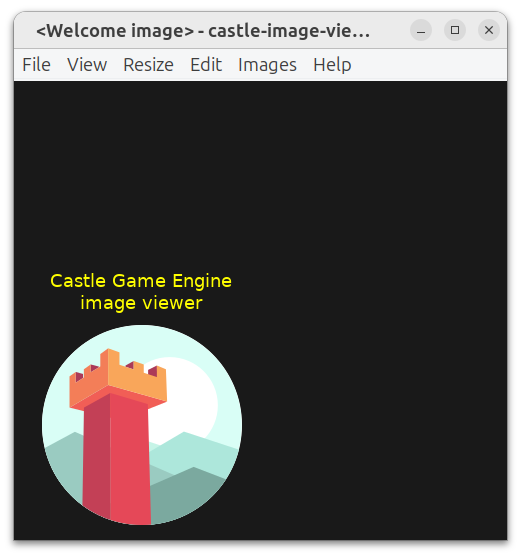
If none found, the default welcome image will be displayed.
All standard options understood by our GUI programs and all standard options understood by all our programs are handled as well.
7. Image Saving Notes
Resulting image format is determined by filename extension, unknown extension will result in error.
Image loaded and displayed by castle-image-viewer is internally always stored in format comfortable for OpenGL. This includes many formats, but not RGBE. It means that if you will load RGBE image to castle-image-viewer and then you will save it (even to the RGBE format again) then you loose RGBE precision (and clamp color values above 1.0).
Also, S3TC compressed images (from KTX, DDS files) will be always decompressed, and saving them back will always make uncompressed files.
To improve this documentation just edit this page and create a pull request to cge-www repository.
